
Google Ads AI Image Editor: Bulk Edit Up to 100 Images
Google Ads documents a way to apply one AI edit to up to 100 images in a single session. That sounds useful for teams that refresh the same creative across several campaigns, but how much can you control, and can a Hong Kong account use it? Here is the documented workflow, the access and language limits, and the checks to run before publishing.
Meowket's take Editing 100 images in one go doesn't mean 100 images are ready to run. Let the AI change the scene, then check every product for warping and every logo for mistakes, and only then add the English and Chinese copy.
Google’s help documentation describes a bulk mode for the AI image editor in Google Ads. You pick up to 100 images, describe one change in a text prompt, such as a new background, and Google AI applies it to each image. Google promoted the feature, including the 100-image limit, in its September 2025 Asset Studio announcement. For a Hong Kong team that refreshes the same product images across several campaigns, that could save a lot of repetitive design work. But Google’s documentation lists no markets, the feature is rolling out gradually, and prompts can’t be written in Chinese.
Key Takeaways
- Google’s help page says the bulk editor handles up to 100 images in one session. Edited images are saved as new assets, and Google says the originals aren’t modified. Google’s bulk editing page lists Performance Max, Demand Gen, App, Search and Display campaigns; its single-image editor page names only Performance Max and Demand Gen.
- Access depends on account eligibility and a gradual rollout. Google’s pages don’t list Hong Kong or any other market. Manual prompts must be in one of eight languages, and Chinese isn’t one of them.
- Google says AI-generated assets aren’t guaranteed to pass policy review. Check every image before it goes live, and add Chinese and English copy separately rather than through the prompt.
Last checked against Google’s help pages and announcements: 9 November 2026.
What does the bulk image editor do?
Google’s help page, “Use the image editor to make bulk edits with Google AI”, describes the workflow inside Asset Studio. You open the Asset library, choose “+ Create new”, hover over Image and select “Generate and edit with AI”. At the bottom of the editor’s start page you choose “Edit multiple images” and pick up to 100 images, including product images from a linked Merchant Center account. You then describe the change, such as a new background or an added object, and select Generate.
One prompt doesn’t produce identical results. Google’s example replaces product backgrounds with “a serene beach at sunrise” and says Google AI “will generate a unique, contextually appropriate background for each of your products”. You review the results, regenerate weak ones and save the final set to a new folder in the Asset library. Google says the edited images are saved as new assets and “the original images won’t be modified”. You can stop a batch while it is running and keep the images finished so far, and Google keeps unsaved sessions for 14 days.
What does a bulk edit look like?
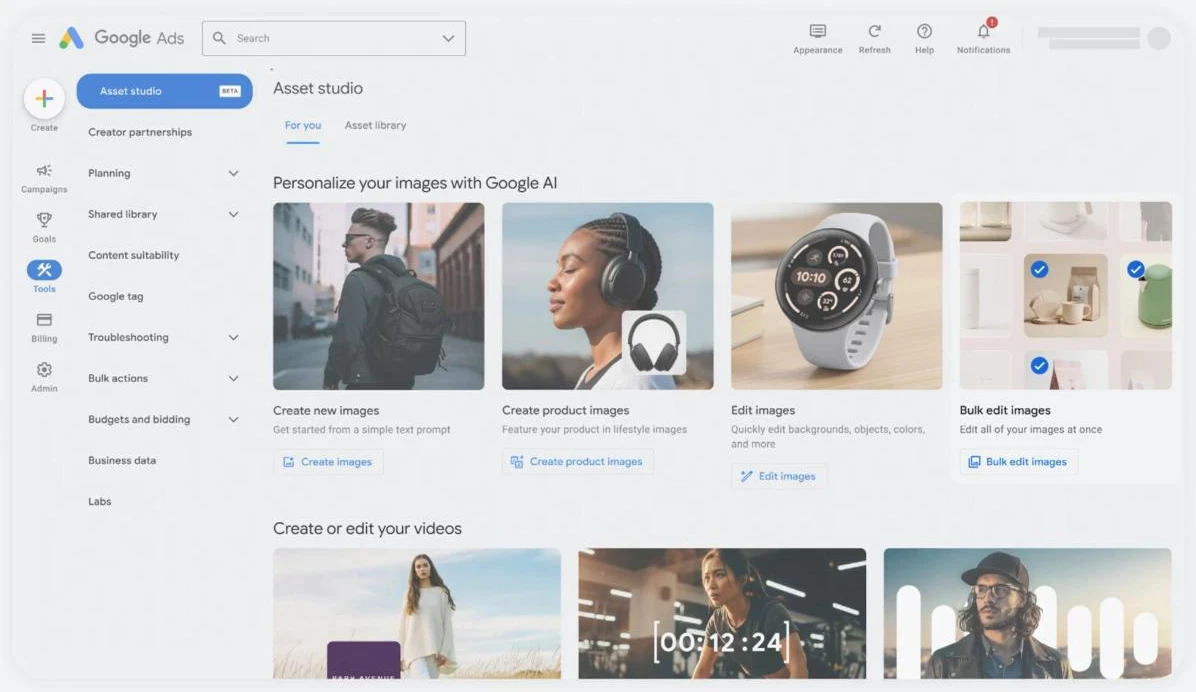
MarketingCat hasn’t tested the bulk editor in a live account, and Google’s help page has no screenshots of it. The clearest official example is the demo video in Google’s September 2025 Asset Studio announcement. In it, a set of crochet-toy product shots goes in, one English prompt asks for a snowy landscape with an igloo in the background, and the batch comes back with varied winter scenes.
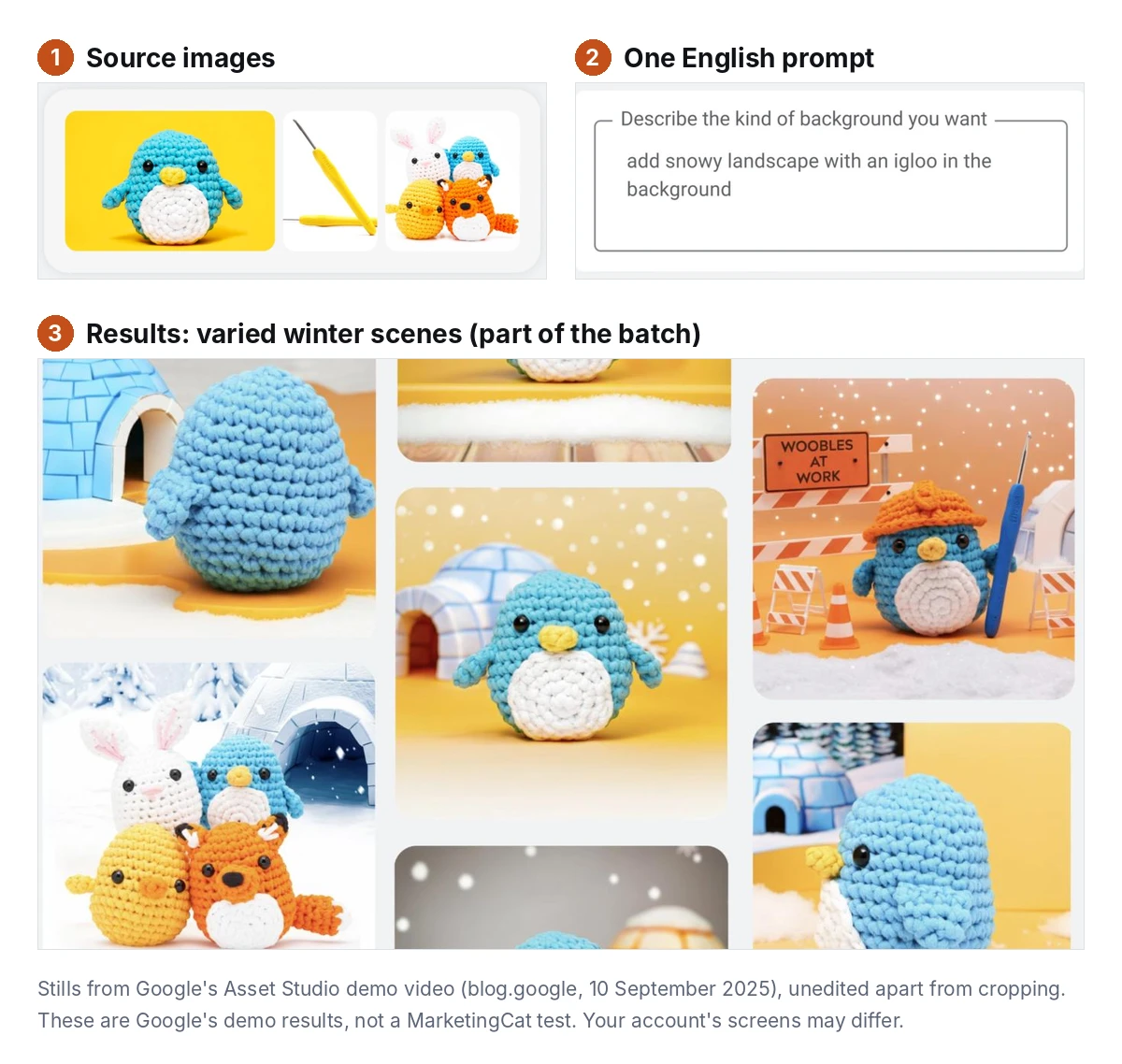
The demo shows two things worth planning for. Each image gets its own scene, which can suit a seasonal refresh but may not suit a brand that needs one consistent background. And the results still need a person to check them: the product’s shape and colour, the crop, and anything the AI has added to the scene.
Can Hong Kong marketing teams use it now?
Possibly, but Google’s documentation doesn’t say. The pages we reviewed list no countries or territories, and Hong Kong isn’t mentioned. Google says image generation is “rolling out gradually to eligible advertisers”, so even an eligible account may not see it yet. We don’t read this as evidence either way: the only reliable test is to look in an eligible account.
For local teams, the clearest barrier is language. The bulk editing page tells users who can’t create images from their own prompts to check that the Google Ads interface is in one of the currently available languages: English, French, Spanish, Dutch, Portuguese, German, Italian or Japanese. Google’s image editor guide says prompts must be written in the same eight languages. A team that works in a Traditional Chinese interface would need to switch, for example to English. The restriction covers manual prompts. It doesn’t stop you running Chinese copy in your finished ads.
Google also lists four account conditions for prompt-based generation:
- Account is active and has been running ads for at least 30 days
- Has a history of policy compliance
- Has not completed election advertising verification
- Is not advertising in a sensitive vertical (for example, sexual or political ads)
Meeting all four doesn’t guarantee access during the rollout. Google also says newer accounts that can’t use their own prompts may still see automatically suggested generated images when they create certain campaigns. The sources we reviewed don’t state a price for the feature.
What can you rely on, and what should you check?
Brand consistency
Because each image gets its own scene, forty images edited with one prompt may come back with forty different backgrounds. Check whether that variety suits your brand guidelines before you save the set. In a September 2024 blog post, Google said advertisers could supply up to five reference images with a prompt to steer generated images towards their brand’s look, and that brand guidelines for Performance Max, covering fonts, colours and logos, would become generally available the following month. Google’s pages don’t say whether reference images work inside a bulk editing session, so test this before relying on it.
English and Traditional Chinese text
Google’s documentation doesn’t say how the editor handles Chinese characters inside an image, or mixed English and Chinese lockups. That is unknown, not proven to fail. As a precaution, we suggest giving the editor clean images with no text, asking it to change only the scene, and adding English and Traditional Chinese copy afterwards in your design tool or through the ad’s text fields. This keeps the typography under your control, and one edited image can carry both language versions.

People
Google says its generative AI tools in Google Ads are “designed to automatically limit the creation of certain content”. Its list includes faces, children or specific individuals, responses to matters of opinion or advice, and images that may violate Google Ads policy or the Generative AI Prohibited Use Policy. Whether a particular prompt produces an image depends on the prompt and those safety limits, and Google suggests rewording a prompt if no images are created. Either way, the editor isn’t a tool to plan a people-led campaign around.
Aspect ratios
For the single-image editor, Google says an image opens “as a main image and 3 versions in different sizes as additional aspect ratios”, cropped for landscape, portrait and square placements, and edits to the main image carry over to the other ratios. Only the main image appears in Asset Studio; any extra ratios you save are available in the media selector when you build an ad. The bulk editing page doesn’t mention crops, so check what your account actually produces.
Policy review
Advertisers carry the responsibility for what goes live. Google says assets created by generative AI aren’t guaranteed to be approved, and may be disapproved when combined with other assets or under local regulations. It also says you should review any generated or suggested asset to make sure it is accurate, not misleading and compliant with its policies and applicable laws before you publish it.
What the bulk editor is not
It isn’t the same as automatic image enhancements. Google’s help page on creative image enhancements covers Demand Gen and App campaigns. It says Google AI can create extra versions of your images “by adding text-overlays, adjusting aspect ratios, and animating images”, and that enhancements are on by default for new Demand Gen campaigns. For Performance Max, Google’s Google Ads API documentation on asset automation lists an image enhancement setting (GENERATE_IMAGE_ENHANCEMENT) as enabled by default, and the API reference describes it as generating “image enhancements (AutoCrop and AutoEnhance)”. These features run automatically, whereas in the editor you write the prompt and choose what to save. If you put Chinese and English copy inside the image itself, an automatic crop could cut it off, so check these settings.
It isn’t Google Ads Editor. Google Ads Editor is a downloadable application for changing many campaign settings at once. The AI image editor runs inside Asset Studio in the web interface and changes the images themselves.
How should you test it before scaling?
Run a small, controlled pilot before you replace live assets. Bulk editing makes it easy to change many images at once, and that makes it hard to tell what caused any change in results. Demand Gen is the safest place to start, because both of Google’s editor pages list it; Display is listed on the bulk editing page.
Illustrative example: refreshing ten product images
Illustrative workflow prepared by MarketingCat. It is not output from a live Google Ads account. A Hong Kong logistics software company wants new backgrounds for 10 product images, each showing its app on a tablet with made-up screen content and no personal data. The team switches the interface to English and uses background replacement with one prompt that follows Google’s tips (add adjectives and context, list attributes with commas, include mood, colour or lighting):
modern logistics warehouse, daylight, tidy shelves, soft neutral lighting, uncluttered
Before saving, the reviewer checks each result: is the device the same size and shape, with the screen and branding unchanged? Has the AI added any text, logo, person or product feature? Is any customer data visible? Does the crop still work on mobile? The team then adds its Traditional Chinese and English headlines in its design tool. If the team also opens each result in the single-image editor and keeps its three extra aspect-ratio crops, it will have 40 images to review (10 main images plus 30 crops), not 10. A test like this can’t prove that Google will always keep a product unchanged; every result still needs checking.
- Baseline: Record four weeks of current results for the asset group you will refresh.
- Controls: Keep the budget, audience and copy fixed, and change only the images.
- Primary KPI: Pick one measure tied to pipeline, such as cost per qualified lead. Treat clicks only as a supporting signal.
- Time frame: Run the refreshed set alongside the old set long enough to collect the volume your account normally needs to judge an asset.
- Reliability: Use the same source images and prompt log for each run. Rerun prompts for important variants and record every prompt, its date and the result. Check results against CRM lead quality, not platform metrics alone.
- Cost lines: Count designer hours, approver hours, overlay production and the test’s media budget.
- Decision: Scale if the primary KPI holds or improves and approval time stays manageable. Revise prompts if results are mixed. Stop if disapprovals or brand fixes take more time than the edits save.
None of our sources measures whether bulk-edited images lift click-through, leads or pipeline, so treat any refresh as a test, not a proven fix. A test can also mislead if no one checks lead quality, so connect the ad results to CRM outcomes. MarketingCat’s guide to measuring B2B SEO ROI shows how to connect campaign results to CRM and closed deals.
What checks should a team set before publishing?
The four steps below are MarketingCat’s framework, built from Google’s requirements and the Hong Kong privacy regulator’s guidance. They aren’t an official Google or PCPD checklist.

Google Ads AI image edits: 4 checks before publishing
- Check the account has the feature: The Google Ads account owner checks the four eligibility conditions, switches the interface to a supported language and confirms that “Edit multiple images” appears, then records a go or no-go decision (based on Google’s requirements, rollout note and eight supported languages).
- Prepare source images you can upload: The designer selects up to 100 images with no embedded text and no personal data, avoiding images that rely on faces or specific people, and saves them as a named source folder (based on the 100-image limit and Google’s content limits).
- Write the edit as an English prompt: The Google Ads account owner writes prompts following Google’s tips (adjectives, comma-separated attributes, setting, colour scheme, lighting) and keeps a prompt log (based on Google’s prompt guidance and language limit).
- Check every image for brand and policy issues: A named approver reviews every image against brand rules, Google’s policies and your internal AI policy before the batch goes live. Images that change product features, figures or certifications need a manager’s sign-off (based on Google’s policy review warning and the PCPD checklist).
For Hong Kong organisations, the last step also draws on local privacy guidance. The PCPD’s Checklist on Guidelines for the Use of Generative AI by Employees, published in March 2025, helps organisations set rules on approved tools, what information staff may enter and human review of output.
Check whether your images contain personal data. Software screenshots, for example, may show customer names or delivery details. Get internal approval before uploading them, use only permitted tools and remove personal data first, making sure it is properly anonymised rather than just having names deleted. Google says information given to its generative AI is handled under the Google Ads terms and its privacy policy, so check those terms, and keep a person reviewing the outputs. MarketingCat’s checklist on the PCPD’s agentic AI guidance covers the wider policy questions.
MarketingCat’s template: AI image pre-publish checklist
- Interface and prompt set in a supported language (for example English, not Chinese)
- Product shape, colour, screen content and branding unchanged; no added text, logos, people or features
- The crops you use checked on mobile and desktop, with no key subject cut off
- Chinese and English copy added separately, not generated through the prompt
- Demand Gen or Performance Max automatic enhancement settings checked
- Asset recorded as generated in Google Ads (which Google says carries SynthID) and handled under your internal AI policy
What are the limits of this analysis?
This article draws on Google’s help pages, Google’s developer documentation, Google’s 2024 and 2025 blog posts and the PCPD’s checklist. MarketingCat has not tested the bulk editor; the screen images in this article are stills from Google’s own demo video. Google’s documentation doesn’t confirm availability in Hong Kong, document how Chinese text inside images is handled, give pricing or offer Hong Kong performance data. The bulk editing page has no publication date, and features may change during the rollout, so check the live help pages before you plan around them.
For a team that refreshes the same product images often, the bulk editor is worth a controlled trial as a background and scene tool. It isn’t a replacement for design judgement or bilingual copywriting. This week, ask your Google Ads account owner to switch their own interface language to English and check whether “Edit multiple images” appears. Then shortlist 10 text-free product images for a first batch. If your company is setting broader AI rules at the same time, MarketingCat’s enterprise AI adoption roadmap shows how to place a tool like this inside them.
Frequently Asked Questions
How many images can I edit at once?
Up to 100 images in one session, according to Google’s bulk editing help page. That is a limit on the source images you select, not a promise about speed or quality. Each image gets its own result, which you review before saving.
Can a Hong Kong account use the bulk editor?
Google’s documentation doesn’t say. It lists eligibility conditions and supported languages, says the feature is rolling out gradually and names no markets. Switch the interface to English in an eligible account and check whether “Edit multiple images” appears.
Can I write prompts in Chinese?
No. Google lists eight supported prompt languages: English, French, Spanish, Dutch, Portuguese, German, Italian and Japanese. That limit applies to the prompts, not to the Chinese copy you add to finished ads.
Does bulk editing overwrite my original images?
No, according to Google. Edited images are saved as new assets in the folder you name, and Google says the original images won’t be modified. Keep a record of each batch’s prompt anyway, so you can compare results later.
Does the AI image editor cost extra?
Google’s pages don’t say. They list eligibility, languages and steps, but no price or paid tier. Even if the tool itself costs nothing extra, budget for review time, overlay design and the media spend for a test.
Are AI-edited images approved automatically?
No. Google says assets created by generative AI aren’t guaranteed to be approved by Ads policy, and that you should check any generated or suggested asset for accuracy and compliance before publishing it.
Can a newly opened Google Ads account use the AI image editor?
Not with your own prompts. Google requires the account to have run ads for at least 30 days. However, Google says newer accounts may still see automatically suggested generated images when creating certain campaigns. Review those suggestions with the same approval process you would apply to a bulk edit.
Will people be able to tell an image was made with Google AI?
Google says every image generated by Google Ads carries identification: open-standard markup that can appear in tools such as Google Image Search, and SynthID, an imperceptible digital watermark that Google says resists screenshots, filters and compression. That applies to images generated in Google Ads; don’t assume the same for images you edit or composite elsewhere. Disclosure in your own ads and sales materials is a separate decision for your internal AI policy.

